Prerequisites
Before you start, make sure you have the following in place:
- A Vercel account with your project already deployed (you should have a live
.vercel.appURL) - A GoDaddy account that owns the domain you want to connect
- Access to your GoDaddy DNS Manager (not just the domain dashboard — the DNS manager is where you'll make the actual record changes)
- About 5–10 minutes for the setup, plus up to 48 hours for DNS propagation (though in practice it usually takes under 30 minutes)
You do not need to transfer your domain away from GoDaddy. Vercel works perfectly with domains registered at any registrar — you just point the DNS records at Vercel's infrastructure.
Step 1: Add Your Domain in the Vercel Dashboard
Navigate to Project Settings
Log into vercel.com and open the project you want to connect to your custom domain. Click on the Settings tab in the top navigation bar, then select Domains from the left sidebar.
Add the Domain
Click Add Domain and type in your domain name. Enter just the root domain — for example, yourdomain.com — without any http:// or www prefix.
Vercel will then ask you how you want to handle the www subdomain:
- Redirect
wwwto root —www.yourdomain.comredirects toyourdomain.com(most common choice) - Redirect root to
www—yourdomain.comredirects towww.yourdomain.com - No redirect — both work independently
For most projects, choosing "Redirect www to root" is the cleanest setup. Users who type www will land on the canonical version of your site.
After selecting your preference, click Add. Vercel will now show you the exact DNS records you need to configure.
Step 2: The DNS Records Vercel Requires
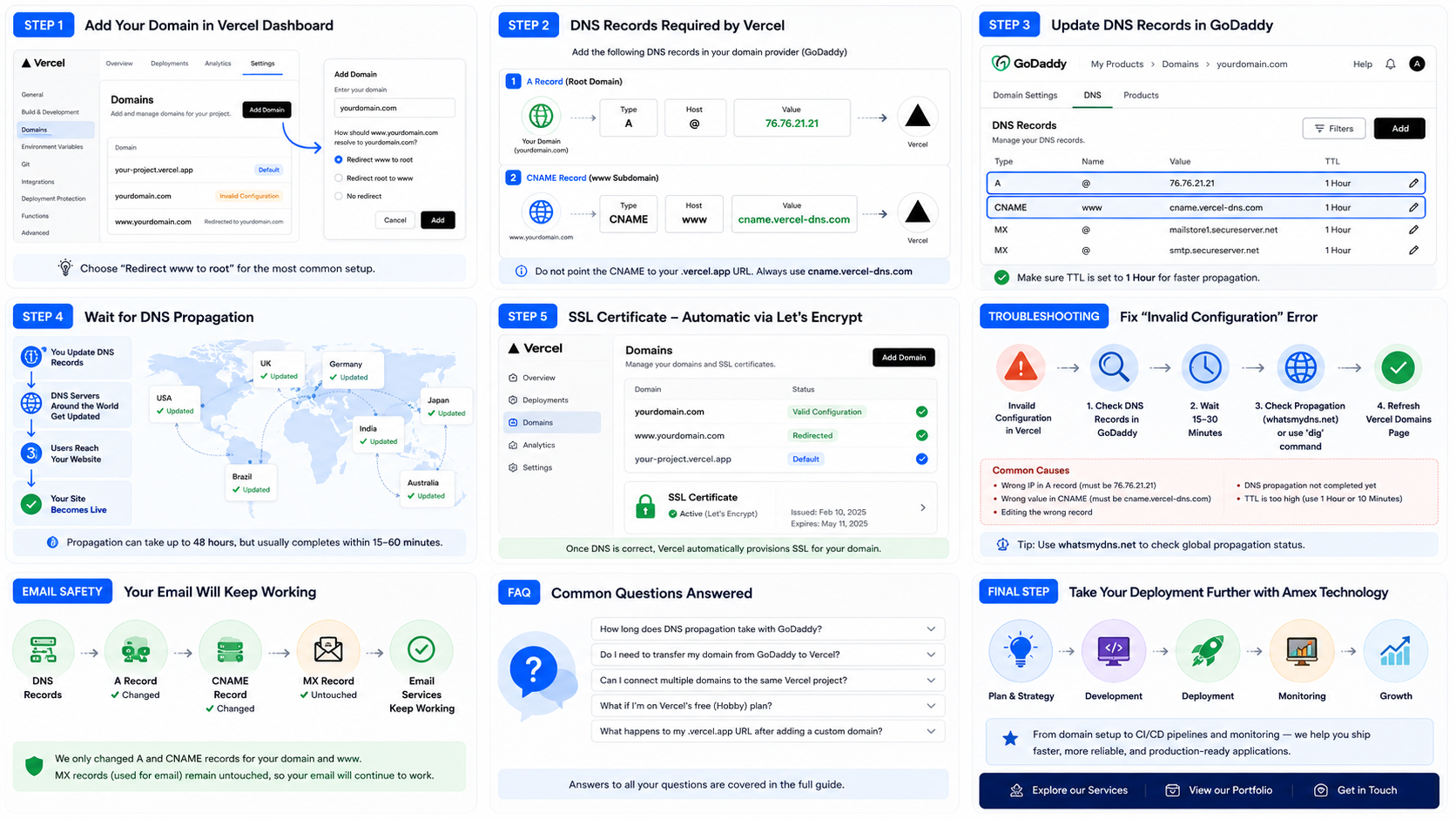
Vercel will show you two records (sometimes three, depending on your setup). The standard records for a root + www configuration are:
A Record (for the root domain)
| Type | Name | Value |
|---|---|---|
| A | @ | 76.76.21.21 |
The @ symbol represents your root domain (yourdomain.com). This A record tells DNS resolvers to send traffic for your bare domain to Vercel's anycast IP address 76.76.21.21.
CNAME Record (for the www subdomain)
| Type | Name | Value |
|---|---|---|
| CNAME | www | cname.vercel-dns.com |
The CNAME for www points to cname.vercel-dns.com, which Vercel uses to route www traffic and handle SSL provisioning for the subdomain.
.vercel.app deployment URL. Always use cname.vercel-dns.com — this is the stable, load-balanced endpoint Vercel maintains for custom domains.
Step 3: Update DNS Records in GoDaddy
Open the DNS Manager
Log into your GoDaddy account. From the top navigation, go to My Products and find your domain. Click DNS (or Manage DNS) next to the domain you want to configure.
This opens the GoDaddy DNS Manager — a table listing all your current DNS records.
Update or Add the A Record
Look for an existing A record with the Name set to @. GoDaddy typically adds a default A record pointing to a GoDaddy parking page. You need to change its value.
- Click the pencil/edit icon on the existing
@A record - Change the Value field to
76.76.21.21 - Set the TTL to 1 Hour (or the minimum available — lower TTL means faster propagation)
- Click Save
If no @ A record exists, click Add → select type A → set Name to @ → set Value to 76.76.21.21.
Add or Update the CNAME Record
Now look for a CNAME record with the Name www.
If one already exists (GoDaddy often creates one):
- Click the edit icon on the
wwwCNAME record - Change the Value to
cname.vercel-dns.com - Click Save
If no www CNAME exists:
- Click Add
- Select type CNAME
- Set Name to
www - Set Value to
cname.vercel-dns.com - Set TTL to 1 Hour
- Click Save
Save Your Changes
GoDaddy will show a confirmation dialog asking you to review the changes. Confirm and save. The DNS Manager will now display your updated records.
Step 4: Wait for DNS Propagation
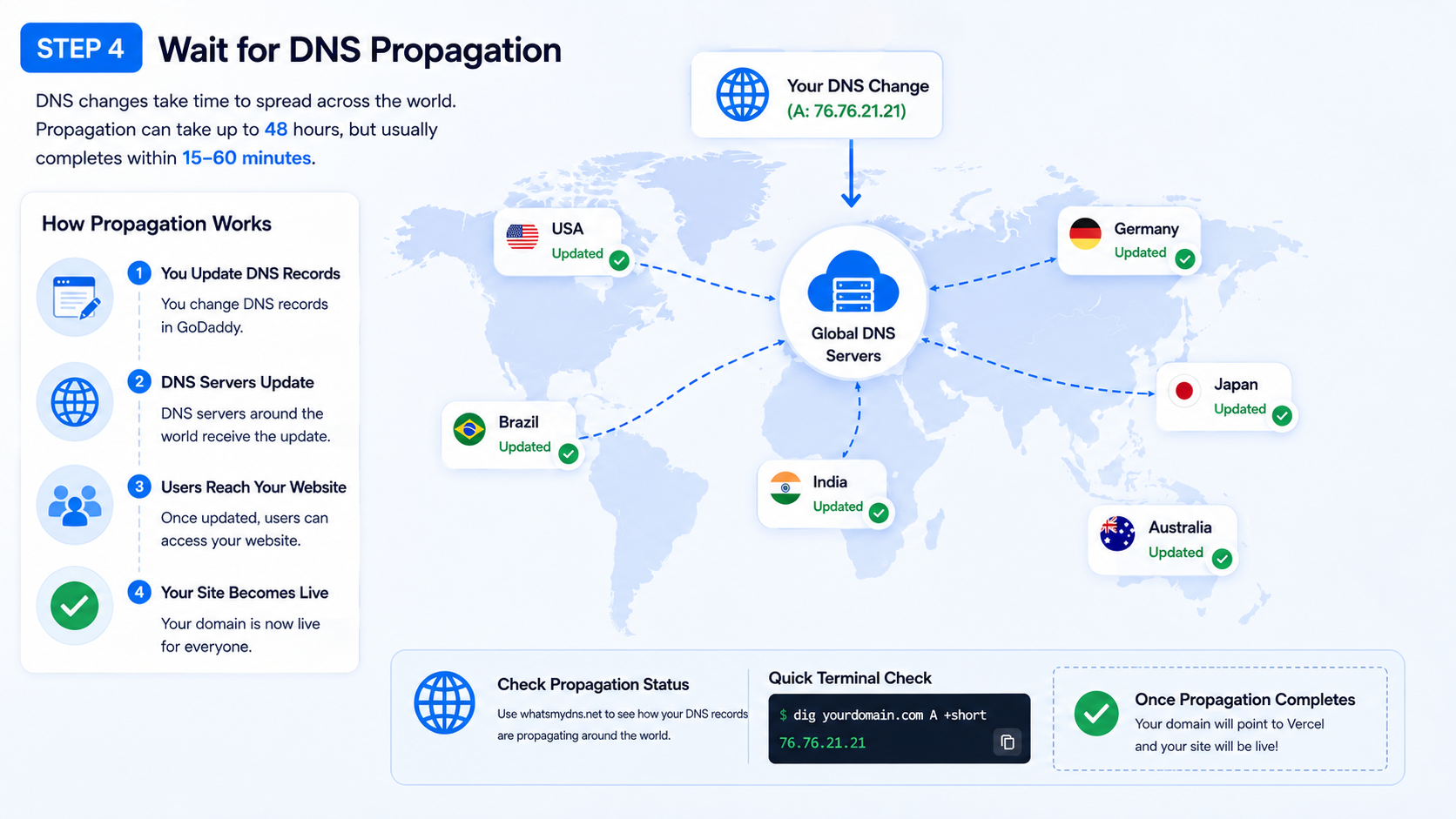
DNS changes do not apply instantly — they propagate across global DNS servers over time. The propagation window is technically up to 48 hours, but in practice most DNS resolvers pick up changes within 15–60 minutes.
During propagation, different users around the world may see different results depending on which DNS server their ISP is using. This is normal.
Check Propagation Status
Use whatsmydns.net to monitor how your DNS records are spreading:
- Go to whatsmydns.net
- Enter your domain (e.g.,
yourdomain.com) - Select record type A
- Click Search
You'll see a world map showing which DNS servers have updated to show 76.76.21.21 and which are still serving the old value. Once the majority of locations show Vercel's IP, your domain is live.
You can also run a quick check from your terminal:
dig yourdomain.com A +short
When this returns 76.76.21.21, your A record has propagated to your local DNS resolver.
Step 5: SSL Certificate — Automatic via Let's Encrypt
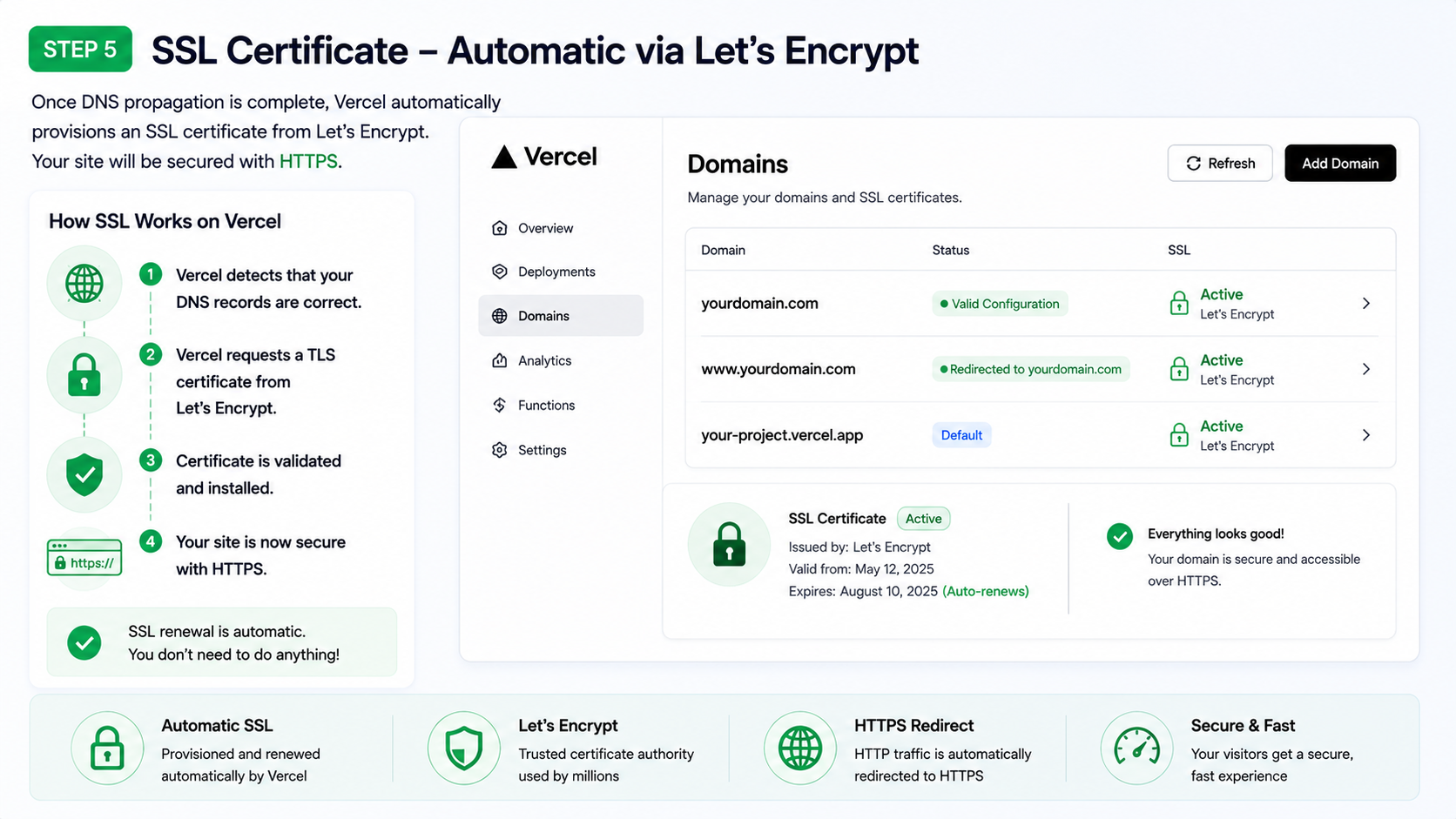
One of Vercel's best features is automatic SSL provisioning. You do not need to buy or configure a certificate separately.
Once Vercel detects that your DNS records are pointing correctly, it automatically issues a TLS certificate from Let's Encrypt and provisions it for both your root domain and www subdomain. This usually happens within a few minutes of successful DNS propagation.
In the Vercel Domains dashboard, you'll see the domain status change from "Invalid Configuration" (orange) to a green checkmark once SSL is active.
Your site will then be accessible over https://yourdomain.com with a valid SSL certificate, and HTTP traffic will automatically redirect to HTTPS.
Troubleshooting Common Issues
"Invalid Configuration" Error in Vercel
This is the most common issue after adding a domain. It means Vercel can see that your DNS records haven't yet been updated to point at its infrastructure.
What to do:- Wait 15–30 minutes and refresh the Vercel Domains page
- Double-check the GoDaddy DNS Manager to confirm you saved the correct values — copy-paste
76.76.21.21andcname.vercel-dns.comdirectly rather than typing them - Use whatsmydns.net to confirm propagation has happened before concluding something is misconfigured
If the error persists after 2+ hours: re-check your records. A common mistake is editing the wrong record (e.g., updating a subdomain record instead of the root @ record).
www Works But Root Domain Doesn't (or Vice Versa)
This usually means one of the two records is missing or incorrect:
- Root doesn't work, www does → The A record for
@is missing or has the wrong value - www doesn't work, root does → The CNAME for
wwwis missing or points to the wrong value
Go back to GoDaddy DNS Manager and verify both records exist and have exactly the values Vercel specifies.
GoDaddy Forwards vs. CNAME — Don't Mix Them
GoDaddy's domain dashboard has a Forwarding section that is separate from DNS records. If you previously set up a forwarding rule, it can interfere with your CNAME configuration.
Go to the DNS Manager → scroll to the Forwarding section at the bottom → remove any existing forwarding rules before relying on CNAME records.
"This site can't be reached" After Propagation
If DNS has propagated (whatsmydns shows 76.76.21.21) but the browser still shows an error, check:
- Is the domain added in Vercel? Confirm it appears under Settings → Domains with a green status
- Is your Vercel project deployed? Go to the Deployments tab and confirm there's a successful deployment
- Browser cache — try opening the domain in an incognito window or a different device
Your GoDaddy Email MX Records Are Not Affected
A common concern when editing DNS records is: *"Will this break my email?"*
The answer is no — as long as you only edit the A and CNAME records Vercel requires. GoDaddy's email service (Workspace Email or Microsoft 365) relies on MX records, which are completely separate from A and CNAME records.
Vercel does not ask you to modify MX records. Your existing email setup will continue working without interruption. To verify this, look at your MX records in GoDaddy DNS Manager before and after making your changes — they should be identical.
If you use Google Workspace or another third-party email provider with your GoDaddy domain, the same applies. MX records are untouched.
Frequently Asked Questions
How long does DNS propagation really take with GoDaddy?In most cases, 15–60 minutes. GoDaddy's default TTL is 1 hour, so once your changes are saved, it takes at most one TTL cycle for most resolvers to pick up the change. Setting TTL to the minimum (600 seconds / 10 minutes) before making changes can speed this up.
Do I need to transfer my domain from GoDaddy to Vercel?No. Vercel does not require you to transfer your domain. You keep your domain registered at GoDaddy and simply point the DNS records at Vercel's infrastructure. Transfers are optional and generally not worth the hassle unless you want everything in one place.
Can I connect multiple domains to the same Vercel project?Yes. You can add as many custom domains as you like under Settings → Domains in your Vercel project. All of them will serve the same deployment, and each gets its own SSL certificate.
What if I'm on Vercel's free (Hobby) plan?Custom domains are fully supported on Vercel's free Hobby plan. You can connect one custom domain per project with automatic SSL at no cost. Vercel's paid plans add features like more team members and analytics, but custom domains are not behind a paywall.
What happens to my Vercel.vercel.app URL after I add a custom domain?
It keeps working. Adding a custom domain does not remove your .vercel.app URL — both will serve your project. This is useful for testing during propagation. If you want to disable the .vercel.app URL for security reasons (to prevent direct access), you can do so from the Vercel project settings.
Take Your Deployment Further With Amex Technology
Connecting a custom domain is a foundational step — but a production-grade deployment involves much more: environment-specific configurations, preview deployments for every PR, proper redirects, cache headers, and a monitoring setup that catches issues before users do.
At Amex Technology, we help teams build the full deployment pipeline — from domain configuration to CI/CD automation to performance observability. If you're looking to harden your Vercel setup or take a project from proof-of-concept to production-ready, we'd be glad to help.
Explore our software development services, see our Portfolio, or get in touch to talk through your project.
Related Services
Need help building this?
Our team specializes in exactly this kind of work. Get a free quote and honest assessment within 24 hours.
Start a Project