No time to debug this Lovable issue? Tell us what's broken and our developers will get it working, usually within 24 hours.
Why Connect Lovable to GitHub
Lovable lets you build a full app from a chat prompt, but by default that code lives inside Lovable's editor. Connecting your project to GitHub gives the code a real, version-controlled home that you own.
Once connected, every change you make in Lovable is committed to your repository, and any change you push to GitHub flows back into Lovable. You can work locally in your own editor, collaborate with other developers, review changes as pull requests, and keep a full history.
If you plan to grow the project beyond a prototype, this is the first step. This guide covers connecting Lovable to GitHub, how the two-way sync works, and how to fix the issues people hit most.
Before You Start
Make sure you have:
- A Lovable project you want to sync
- A GitHub account (the free plan is fine)
- Permission to create repositories on the account or organization you want to use
You don't need to know Git commands to connect the two — Lovable handles the initial setup for you.
Step 1: Open the GitHub Integration in Lovable
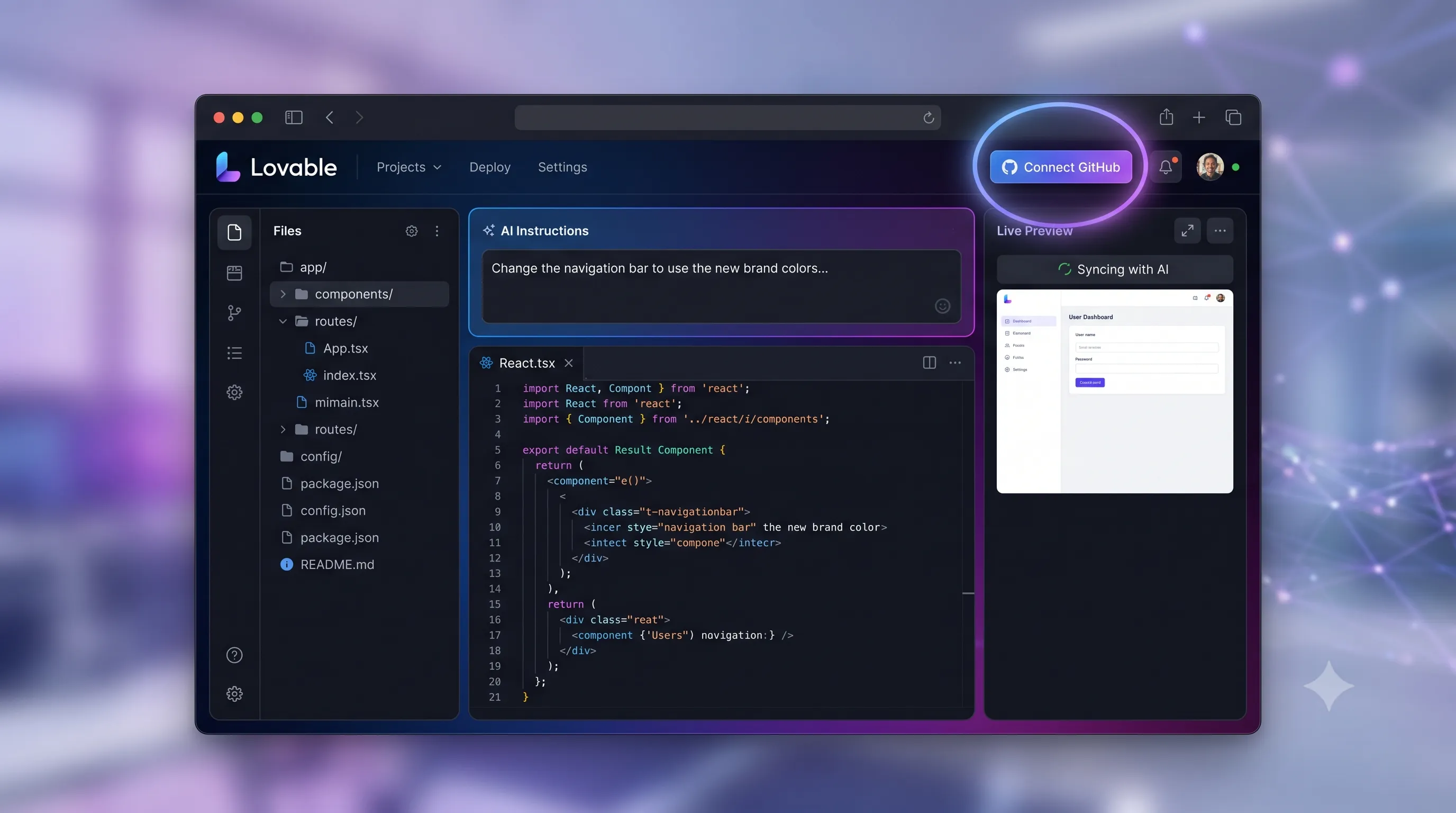
Open your project in Lovable. In the top-right of the editor, find the GitHub button (or open the project menu and choose the GitHub / version control option).
Click it to start the connection flow. The first time, Lovable will ask you to authorize its GitHub app.
Step 2: Authorize Lovable on GitHub
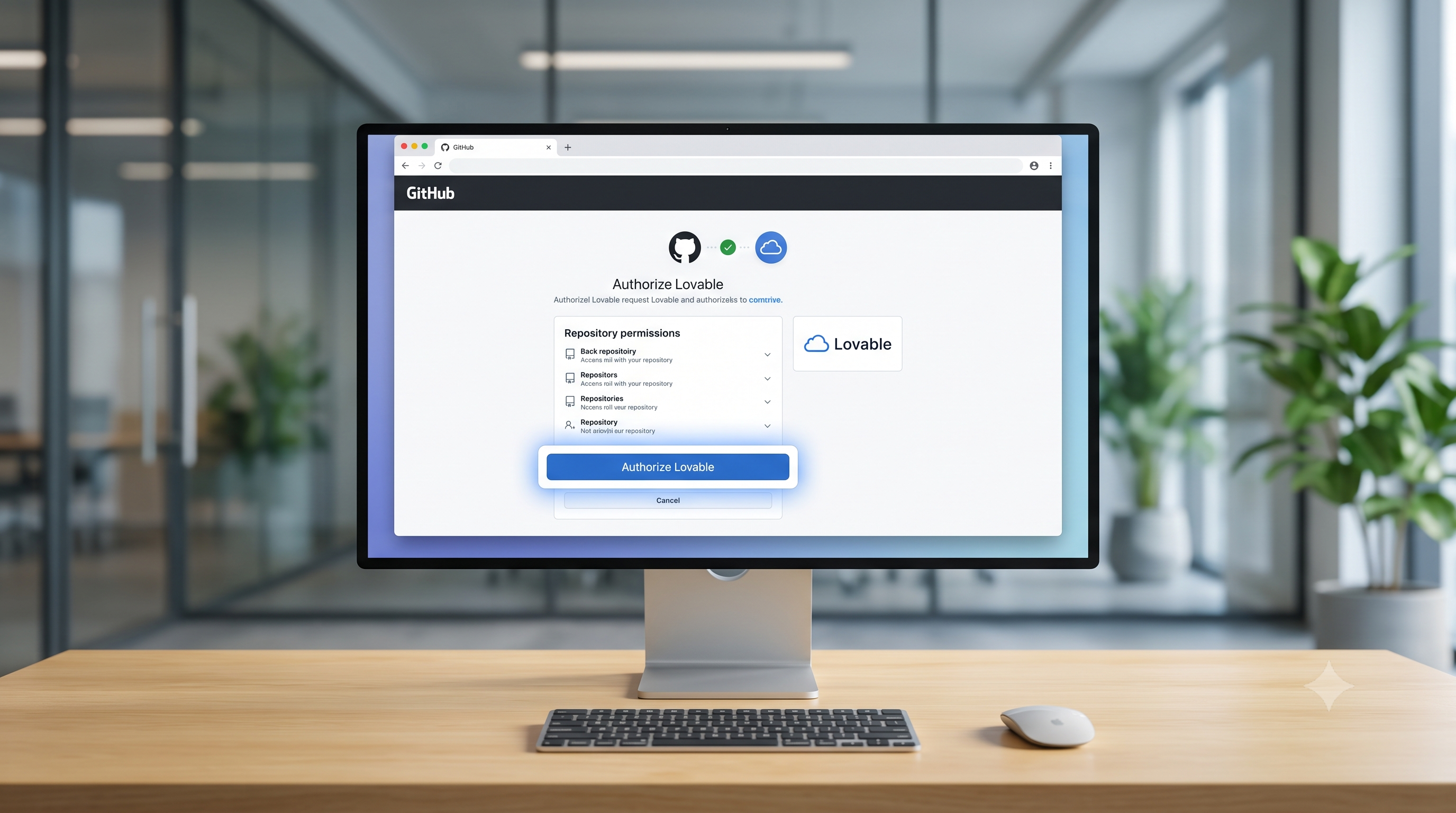
You'll be redirected to GitHub to install and authorize the Lovable app. GitHub asks which account or organization to install it on, and whether to grant access to all repositories or only select repositories.
Choosing "only select repositories" is the safer option — grant access to a single repo now and add more later. Approve the permissions and you'll be sent back to Lovable.
Step 3: Create or Select a Repository
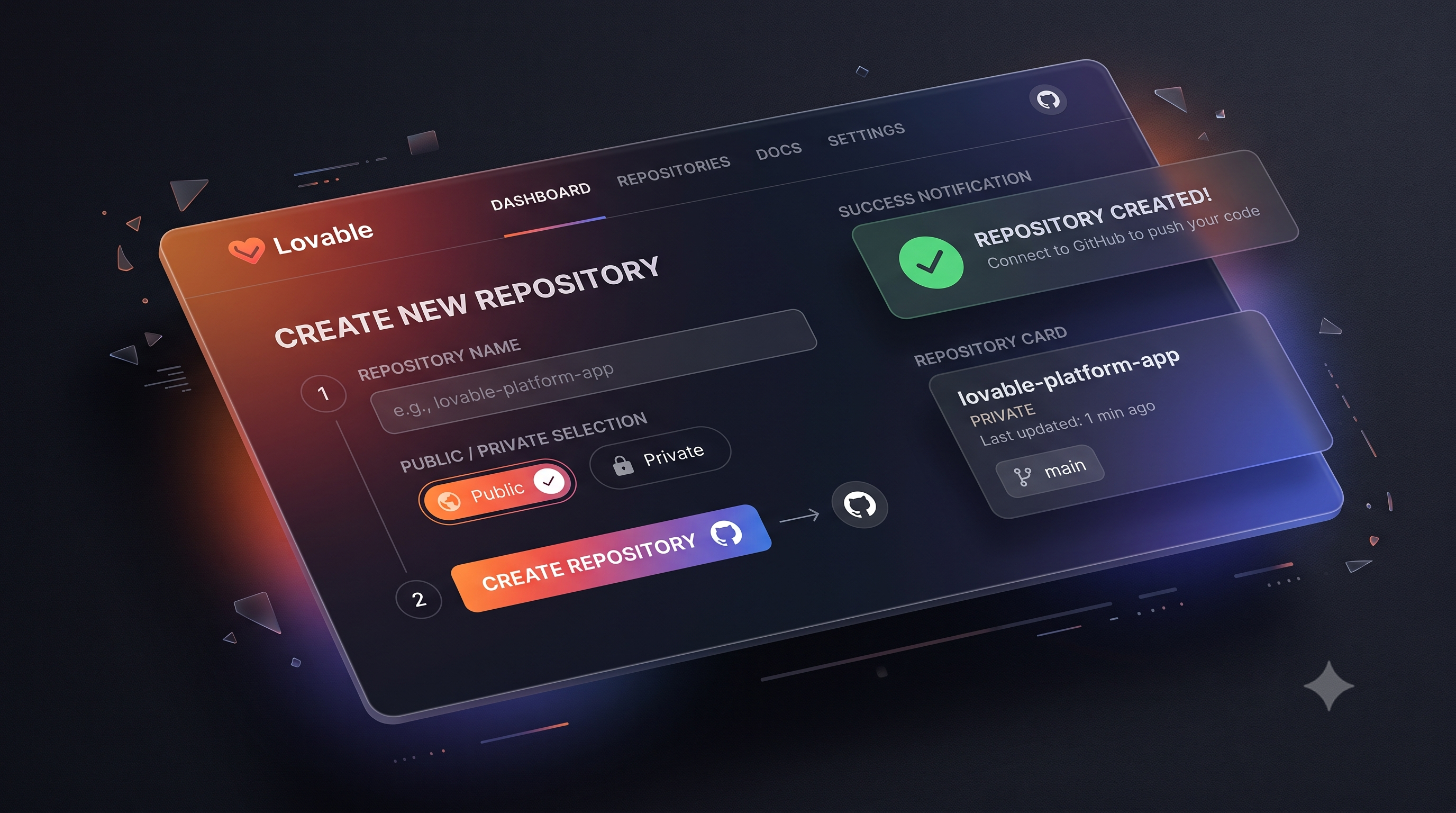
Back in Lovable, you can now either:
- Create a new repository — Lovable creates a fresh repo under your account and pushes the current project into it, or
- Connect an existing repository — link the project to a repo you already have
Pick a name, choose public or private, and confirm. Lovable performs the first commit and push, and within a few seconds your code appears on GitHub.
Step 4: How Two-Way Sync Works
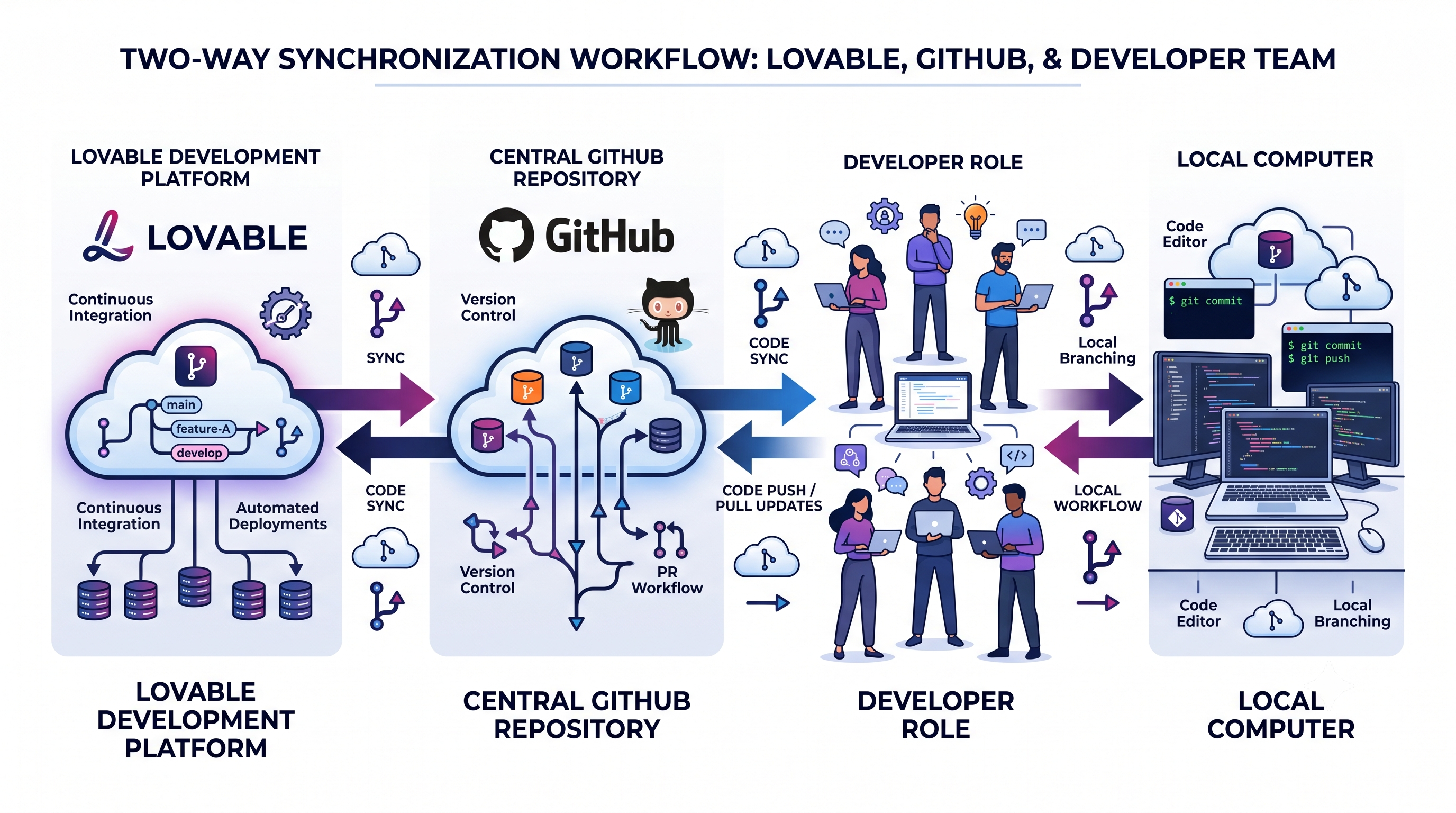
After connecting, Lovable and GitHub stay in sync automatically:
- Edits you make in Lovable are committed and pushed to the connected branch.
- Commits pushed to GitHub (from your machine or a teammate) are pulled back into Lovable.
This is what makes a hybrid workflow possible — non-technical teammates keep prompting in Lovable while developers work in a proper local environment, and both sides see the same code.
Working Locally After Connecting
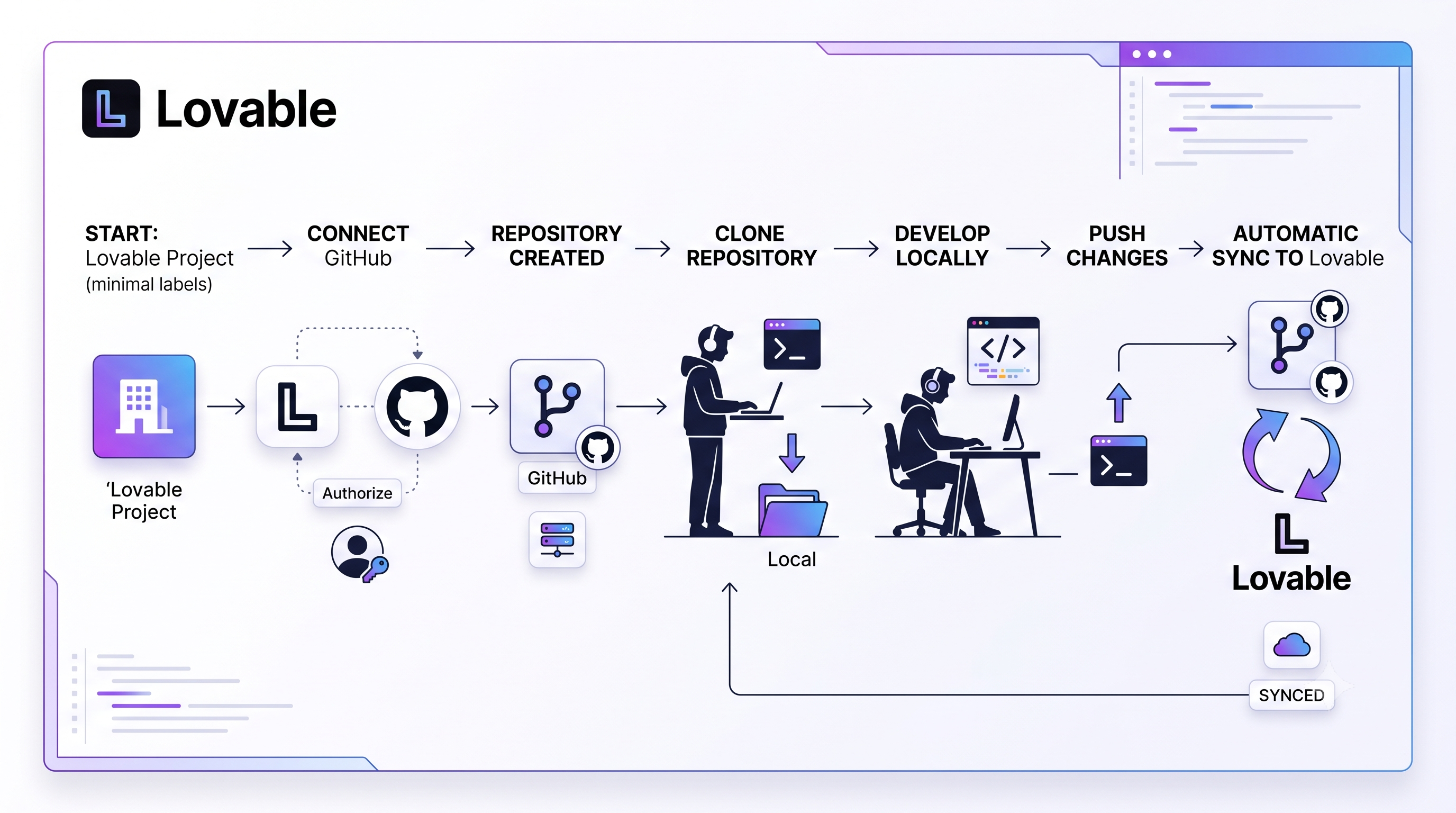
To edit the project on your own machine, clone the repository:
git clone https://github.com/your-username/your-repo.git
cd your-repo
npm install
npm run dev
Make your changes, then commit and push:
git add .
git commit -m "Update landing page copy"
git push origin main
Your push flows straight back into Lovable. If you'd rather take the code out entirely instead of syncing, see our guide on how to export code from Lovable.
Common Issues and Fixes
"Lovable can't see my repository." Re-check the GitHub app permissions — if you chose "only select repositories," the target repo must be in that list. Add it under GitHub → Settings → Applications → Lovable. Changes aren't syncing. Confirm both sides are on the same branch (usuallymain). Lovable syncs to the connected branch only.
Merge conflicts. If you and Lovable edit the same lines, Git can conflict. Resolve it locally, commit, and push — Lovable picks up the resolved version.
Frequently Asked Questions
Do I need to know Git to connect Lovable to GitHub?No. Lovable sets up the repository and the first commit for you. You only need Git if you want to work locally, and even then the basic clone, commit, and push commands are enough.
Is the GitHub sync two-way?Yes. Changes in Lovable are pushed to GitHub, and changes pushed to GitHub are pulled back into Lovable automatically, as long as they're on the connected branch.
Can I connect a private repository?Yes. When creating the repo you can choose private, or connect an existing private repo — just grant the Lovable GitHub app access to it.
What happens to my code if I disconnect GitHub?Your code stays in both places. Disconnecting stops the sync, but the GitHub repository and the Lovable project both keep their current code.
Can multiple developers work on the same Lovable project through GitHub?Yes. That's the main benefit — developers work through GitHub with branches and pull requests while the project stays editable in Lovable.
Take Your Projects Further With Amex Technology
Connecting Lovable to GitHub is the bridge between a prototype and a production codebase. From there you'll want proper branching, CI/CD, staging environments, and a deployment setup that scales.
At Amex Technology, we help teams take Lovable and no-code projects into professional, maintainable production apps. Whether you're wiring up GitHub, adding a custom domain to Lovable, or rebuilding for scale, we can help.
Explore our software development services, see our Portfolio, or get in touch to talk through your project.
Fixed it? Check the rest of your Lovable app for free. Our App Checker scans for exposed API keys, public Supabase service keys, SEO problems and slow loading in about 30 seconds.
Related Services
Bug Fix Service
Still stuck? We'll fix your Lovable error for you.
Skip the hours of trial and error. Send us the error and access to your project, and a senior developer will get it working, usually within 24 hours. We'll review it for free before any work starts.
- Your bug or error fixed by a senior developer
- Most fixes delivered within 24 hours
- Short write-up of the root cause and what changed
- Free assessment before any work starts