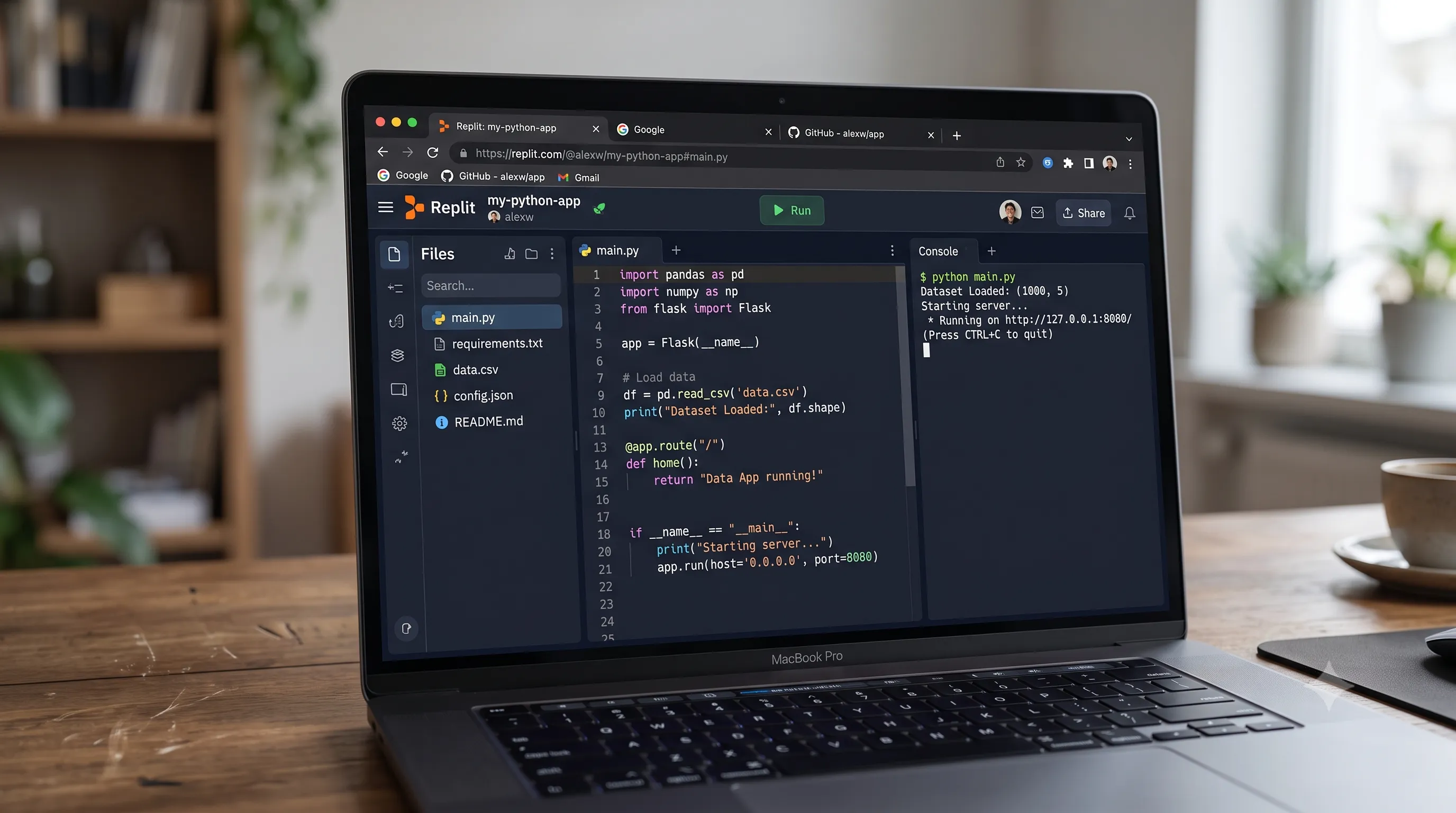
Why You'd Want to Export From Replit
Replit is one of the most popular browser-based IDEs available today. It lets you spin up a project in seconds, collaborate with teammates in real time, and deploy without touching a terminal. But at some point, most developers need to get their code out.
Maybe you're moving a project to a dedicated VPS. Maybe you want to work offline on a long flight. Maybe you need to run the project inside a company environment that doesn't allow external cloud IDEs. Or maybe you just want a local backup.
Whatever the reason, exporting from Replit is straightforward — once you know where to look. This guide covers two reliable methods: the built-in ZIP download and the GitHub push-and-clone approach. It also covers what's actually inside the exported files and how to get everything running locally.
Method 1: Download ZIP via the UI
This is the fastest route. Replit has a built-in export option hidden inside the three-dot menu.
Step 1: Open Your Repl
Log into your Replit account and navigate to the Repl you want to export. Make sure you're on the editor view — you should see your file tree on the left and the code editor in the center.
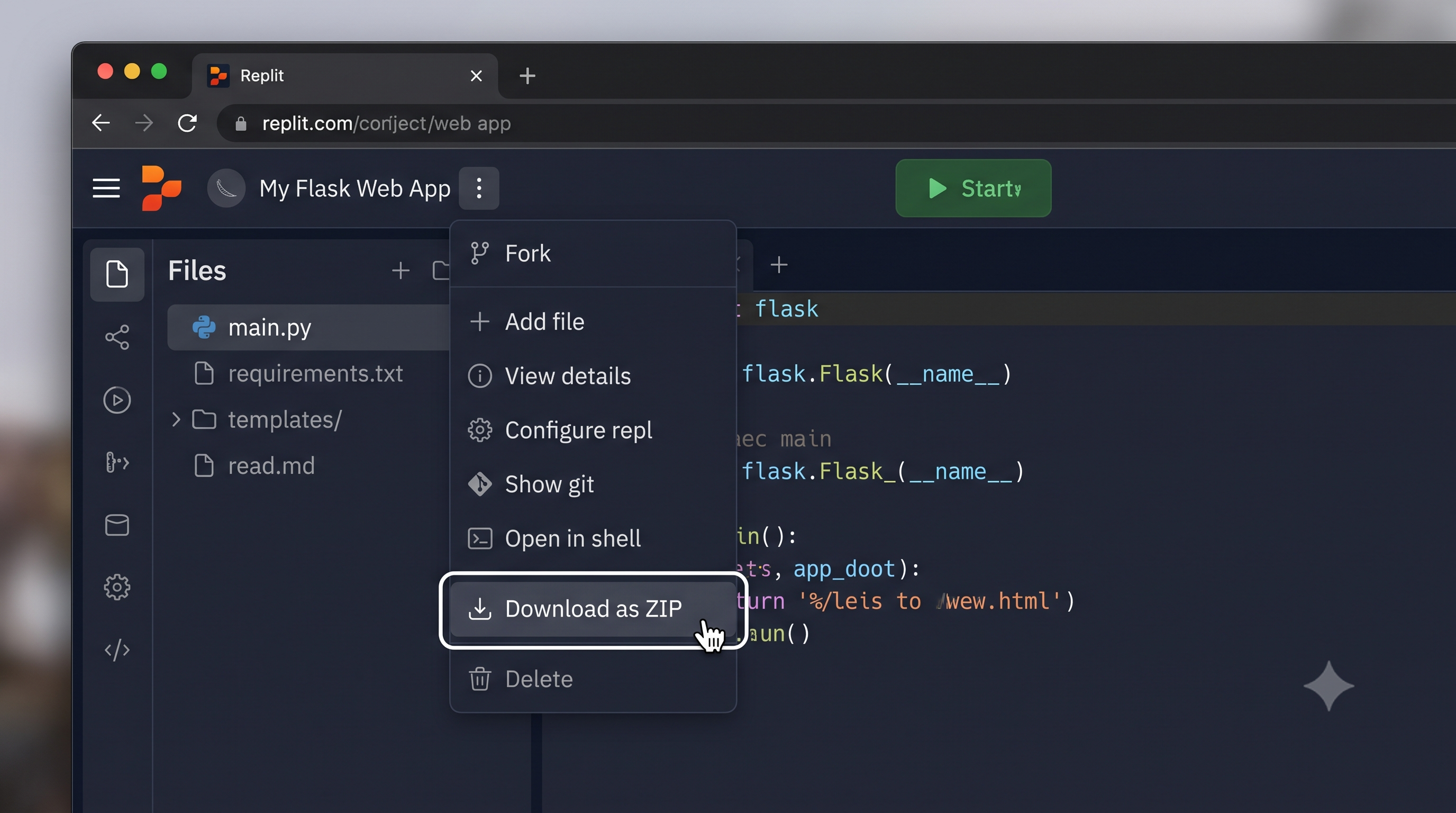
Step 2: Find the Three-Dot Menu
In the top-left corner of the editor, you'll see the name of your Repl next to a small icon. Click the three horizontal dots (⋯) next to the Repl name. This opens a dropdown menu with project options.
If you're on a newer version of the Replit UI, the menu may be accessible via a hamburger or kebab icon in the top toolbar. The label may appear as More or show three vertical dots depending on your screen size.
Step 3: Select "Download as zip"
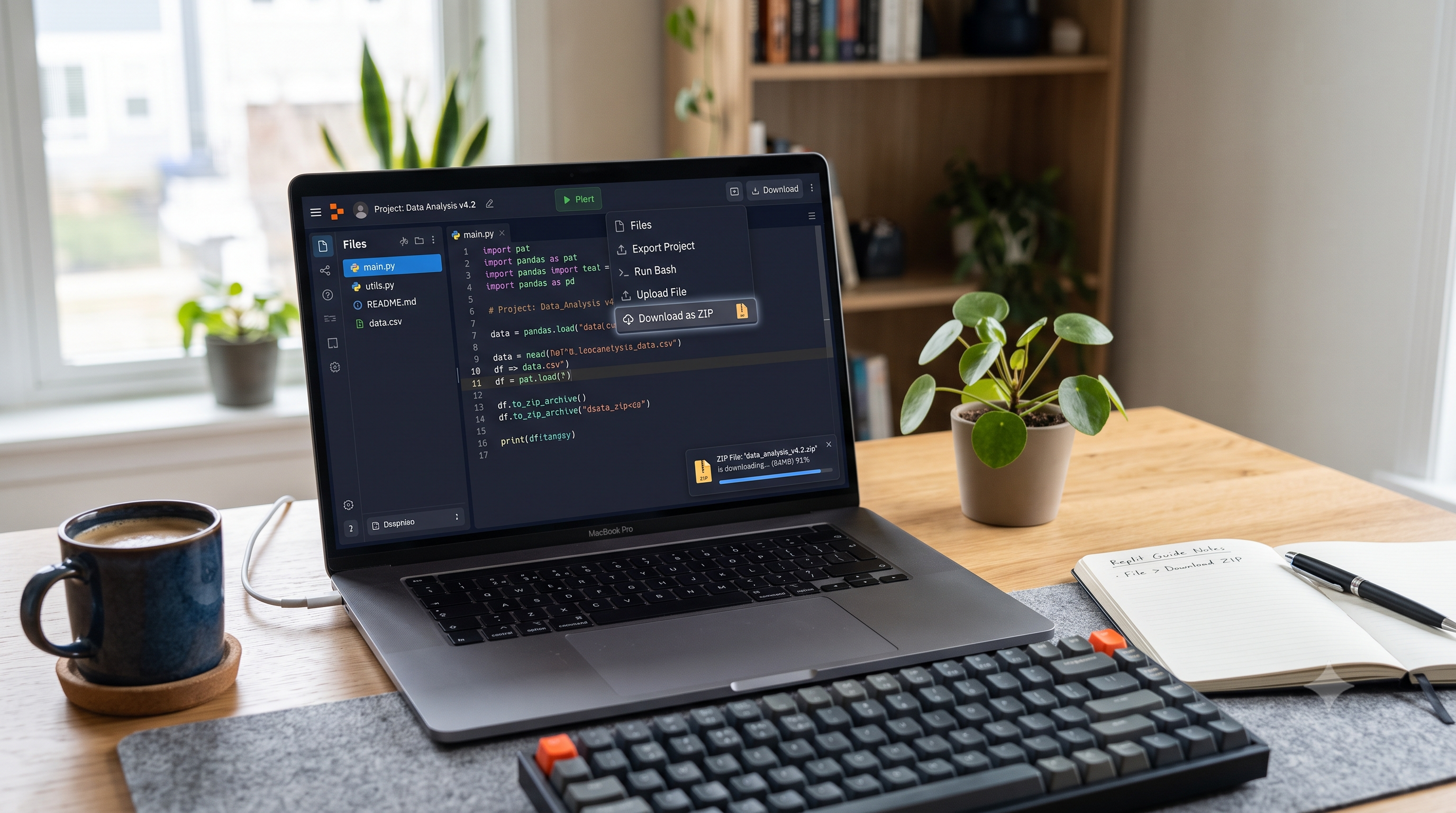
From the dropdown, click Download as zip. Replit will package your entire project directory into a .zip archive and your browser will begin downloading it immediately.
The file will be named after your Repl (e.g., my-project.zip). Depending on project size,
If the option is missing, check:
- You are the owner of the Repl (not just a collaborator with view access)
- You're logged in (the option is not available to anonymous visitors)
- You're in the editor view, not the cover page
Method 2: Push to GitHub, Then Clone Locally
If your project is large, has many binary assets, or you want a proper version-controlled workflow going forward, pushing to GitHub and cloning is the better long-term approach.
Step 1: Connect Your Repl to GitHub
Inside the Replit editor, click the Git icon in the left sidebar (it looks like a branching diagram). If you haven't connected GitHub before, Replit will prompt you to authorize it via OAuth. Grant the permissions and return to the editor.
Step 2: Create a Repository and Push
Once connected, you'll see options to initialize a Git repository and push to GitHub. Click Connect to GitHub, give your repository a name, choose public or private, and click Create repository. Replit will push all your files to a new GitHub repo under your account.
You can verify this by visiting github.com/your-username — the new repository should appear immediately.
Step 3: Clone the Repository Locally
Open your terminal and run:
git clone https://github.com/your-username/your-repo-name.git
cd your-repo-name
This gives you a full local copy with complete Git history — far more useful than a ZIP for ongoing development.
What's Included in the ZIP
When you download the ZIP from Replit's UI, the archive contains everything in your Repl's file system at the time of export:
- All source files (
.js,.ts,.py,.html,.css, etc.) - Configuration files (
package.json,.replit,replit.nix,.env.exampleif present) - Any uploaded assets or static files in your project directory
node_modules/— this directory is excluded automatically (it would make the ZIP enormous and is unnecessary since it's fully reproducible frompackage.json)- Your actual
.envsecrets — Replit stores these separately as environment variables and does not bundle them into exports for security reasons - Replit-internal build caches
The .replit and replit.nix files in the ZIP are Replit-specific configuration files that tell Replit how to run your project. You don't need them locally, but they don't cause any harm either.
Running Your Project Locally After Downloading
Step 1: Extract the ZIP
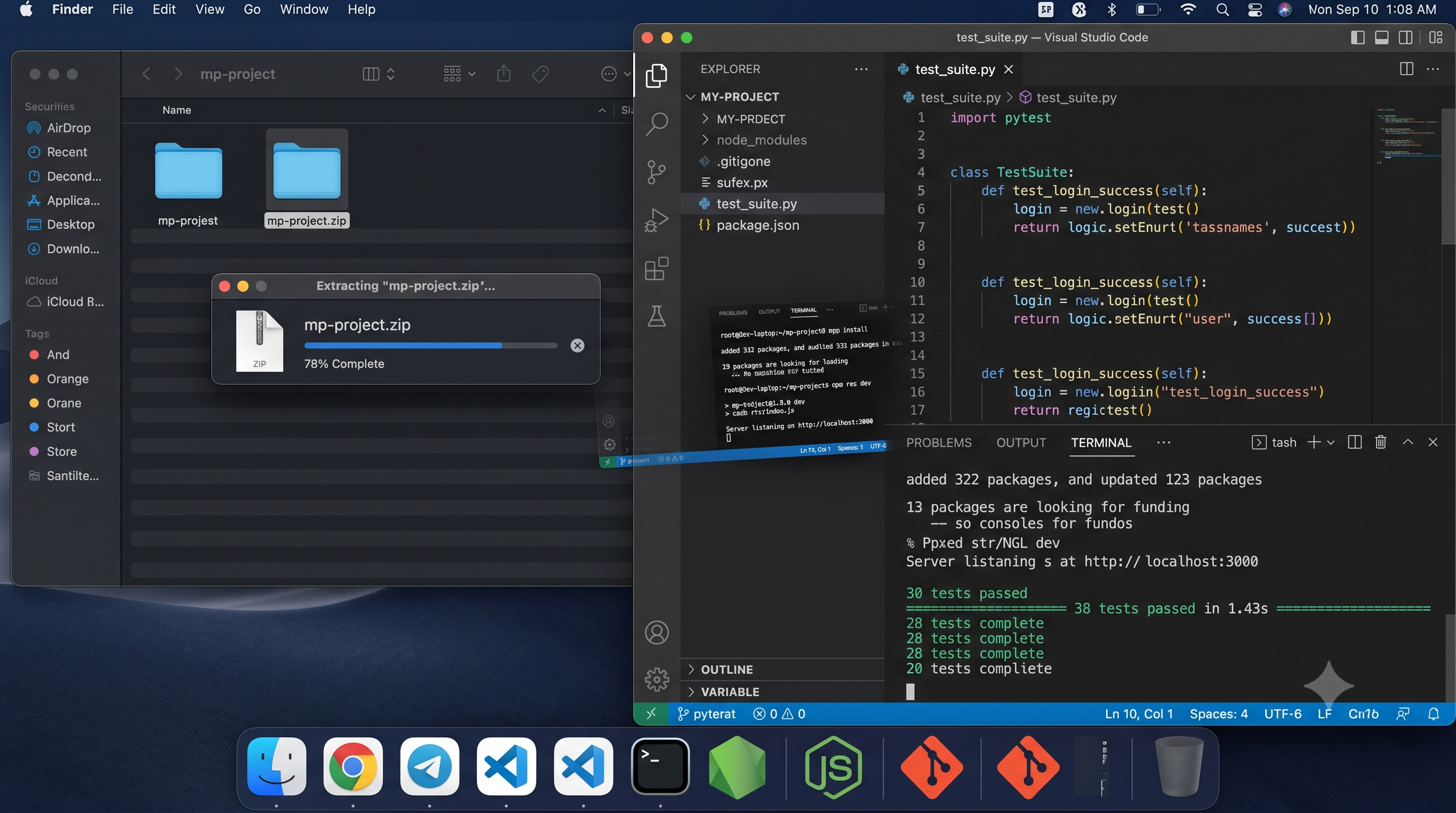
On Mac or Windows, double-click the .zip file to extract it. On Linux or in a terminal:
unzip my-project.zip -d my-project
cd my-project
Step 2: Install Dependencies
If your project uses Node.js, run:
npm install
Or if the project uses Yarn or pnpm:
yarn install
# or
pnpm install
This recreates the node_modules/ directory from package.json. For Python projects, use pip install -r requirements.txt.
Step 3: Set Up Environment Variables
Your .env file was not included in the ZIP. You'll need to recreate it. If you're the project owner, you can find your secrets in Replit under Tools → Secrets. Create a .env file in your project root:
touch .env
Then add each variable in KEY=VALUE format:
DATABASE_URL=your_database_url_here
API_KEY=your_api_key_here
Never commit this file to version control. Add .env to your .gitignore if it isn't already there.
Step 4: Start the Development Server
For a Next.js project:
npm run dev
For a plain Node.js/Express app:
node index.js
For a Python Flask app:
python main.py
Open your browser to http://localhost:3000 (or whichever port your project uses) and verify everything is working.
Common Errors and Fixes
Mac Extracts ZIP as .zip.cpgz Instead of a Folder
This happens when Archive Utility on macOS encounters a ZIP it can't parse, and it re-archives the file instead of extracting it. The result is a .zip.cpgz file that loops endlessly.
unzip ~/Downloads/my-project.zip -d ~/Downloads/my-project
This bypasses Archive Utility entirely and extracts cleanly.
Download Times Out or Fails on Large Projects
Replit's ZIP export has a size limit and can time out for very large projects (especially those with large binary files or many assets).
Fix: Use Method 2 (GitHub push and clone) instead. Git is much better at handling large repositories incrementally. Alternatively, delete unnecessary files in Replit before exporting — check for large assets or test data you don't need locally.npm install Fails With Node Version Errors
Replit may have been running a different version of Node.js than what you have locally.
Fix: Check the Node version Replit used by looking at your.replit or replit.nix file. Then switch your local Node version to match using nvm:
nvm install 20
nvm use 20
npm install
Missing Environment Variables Cause Runtime Errors
If the app crashes with errors like Cannot read properties of undefined or Missing required environment variable, your .env file is incomplete.
.env file and make sure every key is accounted for.
Frequently Asked Questions
Can I download a Repl I don't own?No. The download ZIP option is only available to the Repl's owner. If you're a collaborator, ask the owner to export and share the archive with you.
Does the ZIP include my Git history?No. The ZIP is a snapshot of the current file state, not a Git repository. If you want Git history, use Method 2 (push to GitHub and clone).
Will the downloaded project work exactly the same as on Replit?Mostly, but not always. Replit may have configured specific environment variables, custom Nix packages, or system-level dependencies that aren't part of the ZIP. Check the .replit and replit.nix files to understand what the Replit environment was providing.
Use GitHub as the source of truth. Push from Replit to GitHub, then pull from GitHub to your local machine. This gives you a proper workflow instead of downloading ZIPs repeatedly.
What happens to my Replit Deployments when I move locally?Nothing — they keep running. Exporting a ZIP doesn't affect your live Replit Deployments. You'd need to manually take them down from the Replit dashboard if you want to shut them off.
Take Your Projects Further With Amex Technology
Exporting from Replit is just the first step. Once you have your project running locally, you can integrate it into a professional development workflow — with proper CI/CD pipelines, staging environments, and production deployments that scale.
At Amex Technology, we work with developers and businesses to take projects from prototype to production. Whether you're migrating an existing Replit project or starting fresh, our team can help you architect a setup that grows with you.
Explore our web development services, browse our Portfolio, or reach out via the Contact page.
Related Services
Need help building this?
Our team specializes in exactly this kind of work. Get a free quote and honest assessment within 24 hours.
Start a Project