
No time to debug this Supabase issue? Tell us what's broken and our developers will get it working, usually within 24 hours.
The Problem
The 'email rate limit exceeded' error appears when Supabase's built-in email service hits its sending cap, blocking signup confirmations, password resets, and magic links. It's not a bug - it's a hard limit on the default email provider, and the fix is to configure a custom SMTP provider.

Why It Happens
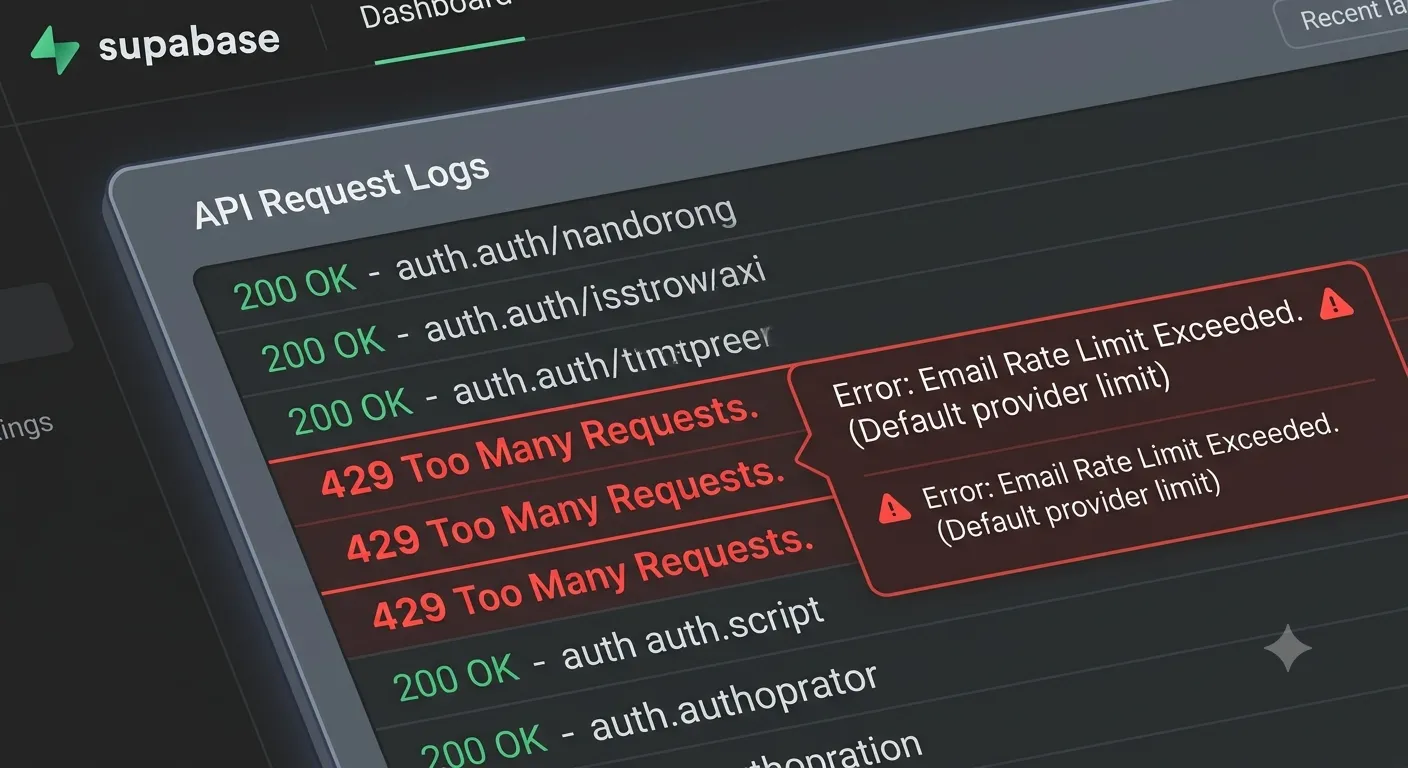
- Supabase's default email service has very low limits - it's meant for development and testing, not production traffic, typically capping out at a small number of emails per hour.
- Repeated test signups - creating and deleting test accounts during development burns through the limit quickly.
- No custom SMTP configured - if you haven't connected your own provider, every auth email goes through Supabase's shared, rate-limited sender.
- Shared IP reputation - because the default sender is shared across many Supabase projects, limits exist to prevent abuse and protect deliverability for everyone.
The Fix
1. Understand the default limits
Supabase's built-in email service is explicitly documented as unsuitable for production. It exists so you can test auth flows without setup, but it is rate-limited aggressively and emails may be delayed or land in spam. Once you see 'email rate limit exceeded', that's your signal to move to a real provider.
2. Set up a custom SMTP provider
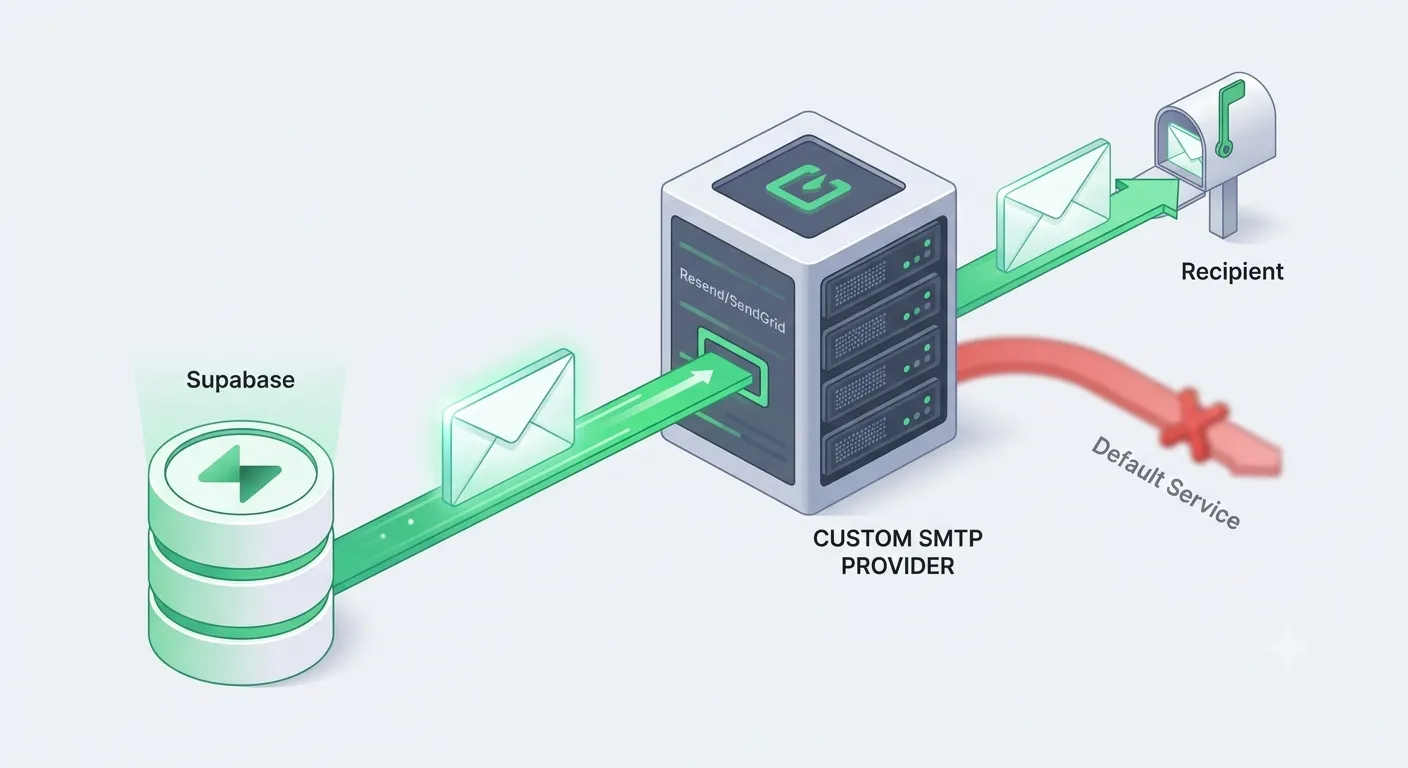
Go to your Supabase dashboard, then Authentication > Emails > SMTP Settings, and enable custom SMTP. Providers like Resend, SendGrid, or Postmark all work well. At minimum you'll need:
Host: smtp.resend.com
Port: 465 (or 587)
Username: resend
Password: your-api-key
Sender email: no-reply@yourdomain.com
Sender name: Your App Name
If you're using Resend specifically, our step-by-step walkthrough on how to set up Resend email covers domain verification and SMTP credentials in detail.
3. Verify your sending domain
Most providers require you to verify domain ownership via DNS records (SPF, DKIM, and sometimes DMARC) before they'll relay email reliably. Skipping this step often results in emails being marked as spam even after SMTP is configured correctly.
4. Throttle test signups during development
While developing locally, avoid creating dozens of test accounts in quick succession against your production project. Instead:
- Use a separate Supabase project for local development and testing.
- Reuse the same test account and simply resend the confirmation link rather than signing up repeatedly.
- Check the Auth logs in your dashboard to see how close you are to the current limit.
5. Confirm the change took effect
After saving custom SMTP settings, send a test signup or password reset and check the email headers - it should now show your SMTP provider (for example, Resend or SendGrid) instead of Supabase's default sender.
const { error } = await supabase.auth.signUp({
  email: 'test@yourdomain.com',
  password: 'a-strong-password',
});
if (error) {
  console.error('Signup error:', error.message);
}
If the 'email rate limit exceeded' error persists after configuring SMTP, double-check that the SMTP toggle is actually enabled and saved, since a misconfigured provider silently falls back to the default limited sender in some setups.
How to Prevent It
- Never rely on Supabase's default email service past initial development.
- Set up custom SMTP before you launch, not after you hit the limit in front of real users.
- Keep separate Supabase projects for development, staging, and production to avoid burning through limits during testing.
- Monitor your email provider's dashboard for bounce and complaint rates, which affect deliverability over time.
Frequently Asked Questions
What triggers the 'email rate limit exceeded' error in Supabase?It's triggered when the number of auth emails sent through Supabase's default email service exceeds its built-in cap, which is intentionally low because that service isn't meant for production use.
Does upgrading my Supabase plan increase the email limit?Plan upgrades increase some platform limits, but the recommended and most reliable fix is still connecting your own SMTP provider, since the default sender is shared infrastructure regardless of plan.
Which SMTP provider should I use with Supabase?Resend, SendGrid, and Postmark are all commonly used and well-documented with Supabase. Choose based on your existing stack and pricing needs; all three support the custom SMTP settings Supabase requires.
Will switching to custom SMTP fix delayed or spam-filtered emails too?Yes, in most cases. The default email service is both rate-limited and more likely to be flagged as spam. A verified custom domain with proper SPF/DKIM records generally resolves both issues at once.
Need Help?
Setting up transactional email correctly the first time saves hours of debugging later. Explore our development services or get in touch if you'd like help configuring SMTP and auth flows for your project.
Fixed it? Check the rest of your Supabase app for free. Our App Checker scans for exposed API keys, public Supabase service keys, SEO problems and slow loading in about 30 seconds.
Related Services
Bug Fix Service
Still stuck? We'll fix your Supabase error for you.
Skip the hours of trial and error. Send us the error and access to your project, and a senior developer will get it working, usually within 24 hours. We'll review it for free before any work starts.
- Your bug or error fixed by a senior developer
- Most fixes delivered within 24 hours
- Short write-up of the root cause and what changed
- Free assessment before any work starts